Diagram Set Fundamentals
A Diagram Set is the structural backbone of Architecture Diagrams in Nodinite. It groups related C4 views into one coherent, navigable architecture story and keeps those views connected through shared Repository bindings.
What a Diagram Set Organizes
A set groups all relevant architecture views for one subject. A Diagram Set groups all relevant architecture views for one software system, such as Order-to-Cash or Private Banking. A set can include multiple architectural scopes, but it still acts as the home for one coherent software system. Each architectural scope should have its own L1, L2, and L3 diagrams where those views are relevant.
Repository
└── Architecture Diagrams
    └── Diagram Sets
        └── Order-to-Cash
            ├── L0 - System Landscape
            ├── L1 - Context
            ├── L2 - Container (ERP)
            ├── L2 - Container (Portal)
            ├── L3 - Component (INV-Order-Invoiced)
            ├── Dynamic - Runtime Checkout Flow
            └── Deployment - Production
This structure keeps communication, design, and runtime understanding aligned under one named set instead of spreading diagrams across disconnected files.
Coverage Matrix
The coverage matrix shows how one Diagram Set can contain multiple architectural scopes while still keeping the expected C4 coverage for each scope.
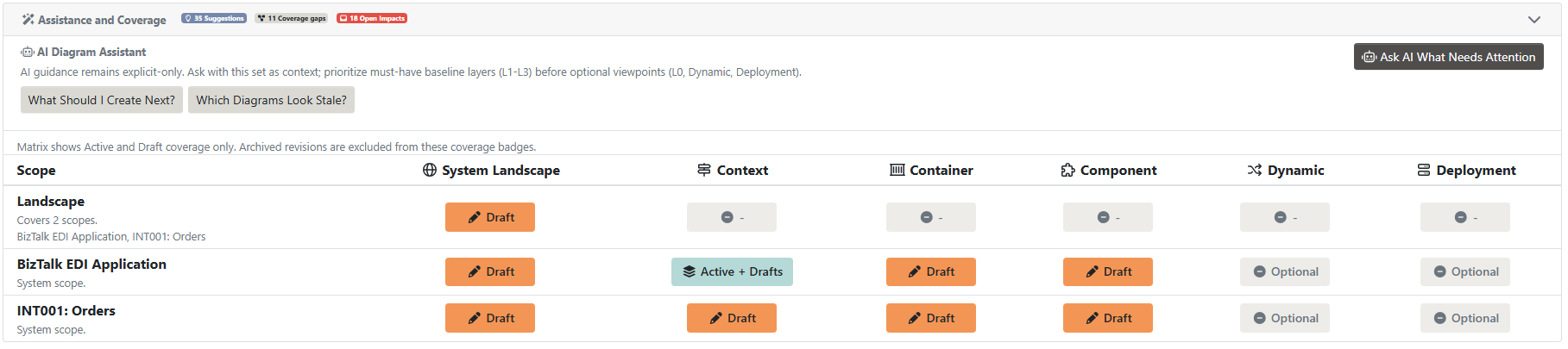
Example of a Diagram Set coverage matrix showing multiple architectural scopes inside one software system and the L1 to L3 coverage expected for each scope.
Architecture Scope Model
Inside a Diagram Set, a Scope represents one architecture identity. Inside a Diagram Set, a Scope represents one architecture identity inside the broader software system.
Multiple diagram types can describe that same scope:
- Context
- Container
- Component
- Dynamic
- Deployment
This means diagrams are not related only because they are in the same set. They are related because they describe the same scope. This means diagrams are not related only because they are in the same set. They are related because they describe the same scope.
The active-state rule applies to scoped diagram types: one architectural scope can have only one Active diagram per type, but it can have any number of Drafts.
That rule does not apply to System Landscape or Dynamic diagrams because they have no architectural scope.
Diagram Set

    Customer Ordering (Scope)
        Context
        Container
        Component
        Dynamic
        Deployment

    Finance (Scope)
        Context
        Container
        Component
Why Sets Matter
| Without sets | With Diagram Sets |
|---|---|
| L1 and L2 diagrams are isolated documents | Context, Container, and Component views stay connected |
| Teams search manually for follow-up diagrams | Drill-through navigation points to relevant next-level diagrams |
| Diagram names drift and duplicate over time | Repository bindings keep entity identity consistent |
| Work-in-progress and published views mix together | Draft, Active, Archived lifecycle gives clear governance |
| Work-in-progress and published views mix together | Draft, Active, Archived lifecycle gives clear governance within each architectural scope |
Layered Mode and Free Draw by Scope
| Mode | Scope usage | Node and boundary behavior | Synchronization behavior |
|---|---|---|---|
| Layered Mode | Scope is the architectural contract between related C4 views | Adding or removing nodes and boundaries can update inferred relationships inside the same scope | Keeps multiple C4 views synchronized within the same scope |
| Free Draw | Scope still provides context and organization | Nodes and boundaries can be edited without affecting other Draft diagrams, regardless of scope | No automatic layered synchronization |
In short:
- Free Draw supports isolated editing.
- Layered Mode supports scope-driven architectural continuity across zoom levels.
How Drill-through Navigation Works
Drill-through is created when diagrams in the same set share the same bound Repository entity.
Example:
- L1 Context references
System: ERP - L2 Container is scoped to the same
System: ERP - Nodinite creates a drill-through link from the L1 ERP node to that L2 diagram
The same pattern applies from L2 to L3 when a container node and a component diagram share the same underlying entity scope.
A practical identity rule for inferred navigation is:
Same Scope
+
Same Repository bindings
->
Automatic navigation
The Related Diagrams panel on diagram pages lists these discovered links so users can move between levels quickly.
If a diagram changes to a different scope, inferred navigation is recalculated for that new architectural identity.
Diagram Lifecycle States
Every diagram in a set has one lifecycle state:
| State | Meaning |
|---|---|
| Draft | Work in progress for editing and validation |
| Active | Current published diagram shown as canonical view |
| Archived | Older historical version retained for reference |
Only one Active diagram per type and scope is allowed in a set. Promoting a Draft to Active archives the previous Active version.
Changing scope is not cosmetic. It changes architectural identity and can re-evaluate inferred links.
Core Routes in the User Journey
| Route | Purpose |
|---|---|
/repository/architecture/sets |
Browse and create Diagram Sets |
/repository/architecture/sets/{setId} |
Open one set and view grouped diagrams |
/repository/architecture/sets/{setId}/diagrams/{id}/view |
Read-only Mermaid viewer |
/repository/architecture/sets/{setId}/diagrams/{id}/mermaid |
Raw Mermaid source |
/api/repository/architecture/sets/{setId}/diagrams/{id}/export.{format} |
Export as PNG, SVG, or Draw.io |
Operational Guidance
- Keep one set per architectural subject so drill-through remains intuitive
- Keep one set per software system so drill-through remains intuitive
- Use Draft for collaborative design reviews before promotion
- Use Active for stakeholder-facing architecture
- Keep Archived diagrams for traceability and change history
For set-wide maintenance workflows, use Diagram Assistance and, when needed, Sync.
Next Steps
- Back to Architecture Diagrams Overview
- What is C4 Diagrams?
- C4 Designer - Interactive Canvas
- Diagram Assistance
- Creating Your First C4 Diagram